Registering processing extensions with the system
Before you can apply your processing extensions to particular objects, you must make your library of code available to each machine that will process the relevant schedule or view requests. The Crystal Enterprise installation creates a default directory for your processing extensions on each Job Server and Page Server. It is recommended that you copy your processing extensions to the default directory on each server. On Windows, the default directory is C:\Program Files\Crystal Decisions\WCS\ProcessExt; on UNIX, it is the crystal/processext directory.
Tip: It is possible to share a processing extension file. For details, see Sharing processing extensions between multiple servers.
Depending upon the functionality that you have written into the extension, copy the library onto the following machines:
- If your processing extension intercepts schedule requests only, copy your library onto each machine that is running as a Job Server.
- If your processing extension intercepts view requests only, copy your library onto each machine that is running as a Page Server.
- If your processing extension intercepts schedule and view requests, copy your library onto each machine that is running as a Job Server and/or as a Page Server.
Note: If the processing extension is required only for schedule/view requests made to a particular Server Group, you need only copy the library onto each Job Server/Page Server in the group.
To register a processing extension with the system
- Go to the Objects management area of the CMC.
- Click Extensions.
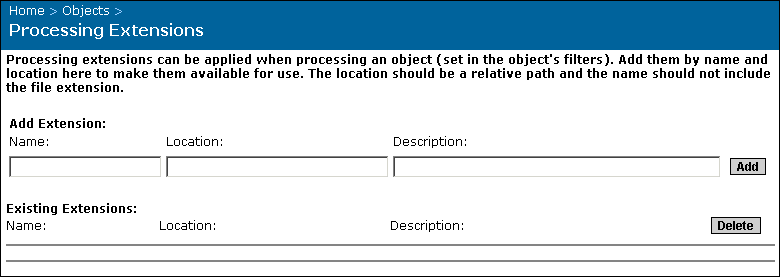
- In the Name field, type a display name for your processing extension.
- In the Location field, type the file name of your processing extension along with any additional path information:
- Use the Description field to add information about your processing extension.
- Click Add.
You can now select this processing extension to apply its logic to particular objects. For details, see Selecting a processing extension for a report.
Tip: To delete a processing extension, select its check box and click Delete.