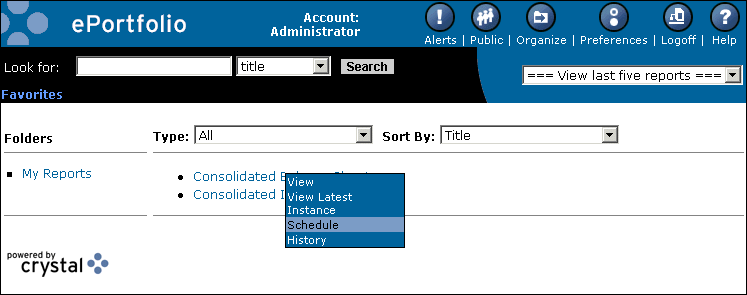
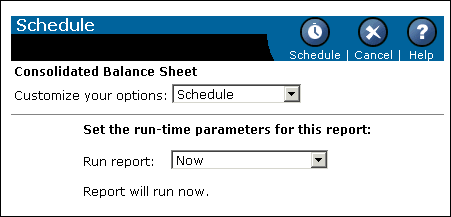
The "Customize your options" list contains the choices you can make while scheduling.
The area below the list contains items specific to the schedule option you choose.
Scheduling a report lets you run it automatically at specified times. When a scheduled report runs successfully, an instance is created. An instance is a version of the report containing the data available at the time it was run—instances created later contain more recent data.
You can see a list of instances by looking at a report's history, and you can click the link to any historical instance. If you have the rights to view reports on demand, you can view and refresh any instance to retrieve the latest data from the database.
By scheduling and viewing instances, you can ensure you have the latest information available for viewing, printing, and distributing. For example, you can schedule a report to run every night so it's available for you first thing in the morning.
Note: Before scheduling reports, check your time zone setting on the Preferences page in ePortfolio. The default time zone is local to the web server that is running Crystal Enterprise, not to the Automatic Process Scheduler (APS) machine(s) that each user connects to. By setting your time zone, you ensure that your scheduled reports are processed in accordance with the time zone in which you are working. You must have your own account on the system in order to set your preferences.
Depending on the report you are scheduling, you might want to customize your scheduling options. You can set:
Note: For some scheduling options, the settings that the administrator has specified for the report will be displayed when you choose that option. You can schedule a report with these options or customize your options.
The "Customize your options" list contains the choices you can make while scheduling.
The area below the list contains items specific to the schedule option you choose.
| Crystal Decisions, Inc. http://www.crystaldecisions.com Support services: http://support.crystaldecisions.com |